Salesforce - PhoneIQ After Call Work Dashboard
Learn how to read and personalize your After Call Work Dashboard.
Updated on April 6, 2022
PhoneIQ Dashboards let you see reports of in- and outbound calls. This article will go over the After Call Work Dashboard (see also a full list of our dashboards).
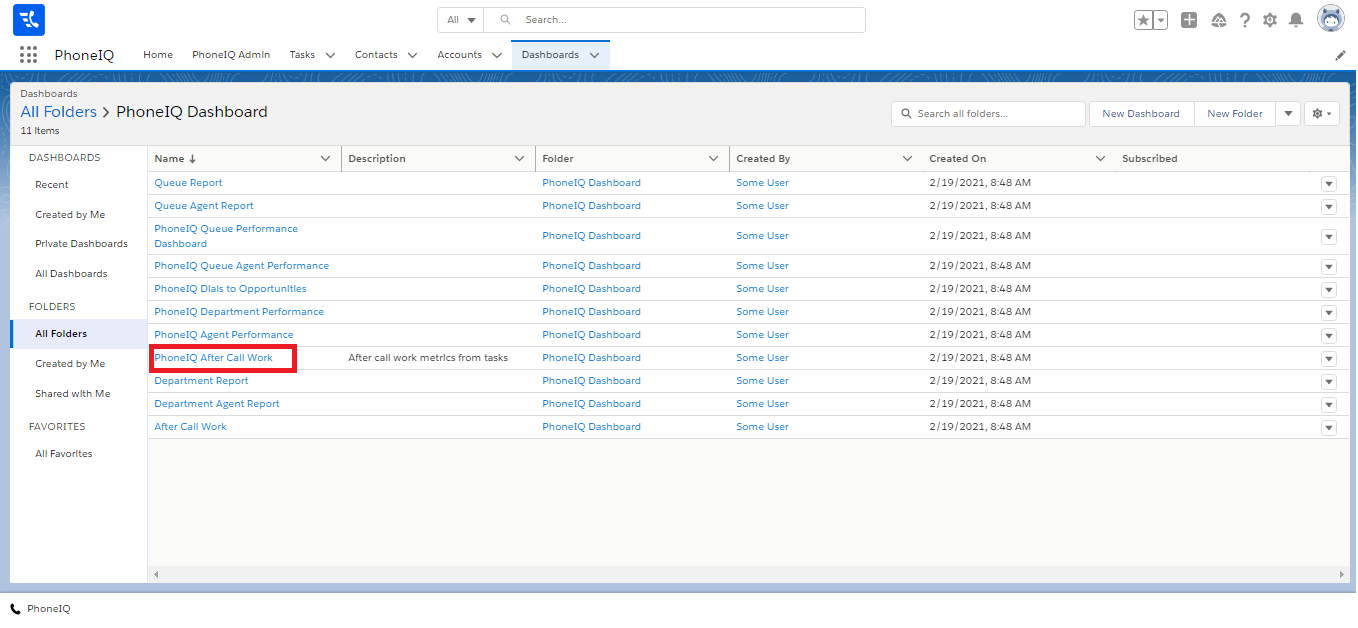
Step 1: Follow the steps at 'PhoneIQ Dashboards - Salesforce Reports' and access the 'PhoneIQ After Call Work' dashboard.
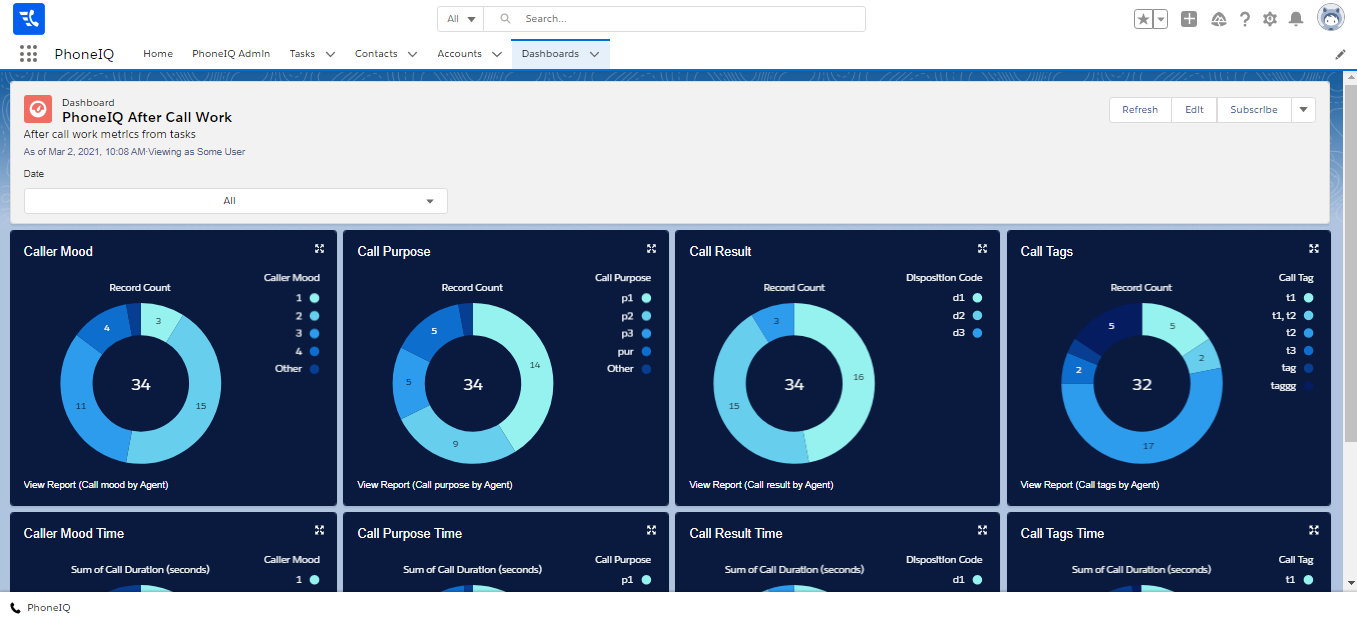
Step 2: On there, you will see all PhoneIQ's reports for your after-call work stats.
Understanding Reports
Here is a comprehensive list of every report on the dashboard:
- Caller Mood: Groups calls by caller mood.
- Call Purpose: Groups calls by call purpose.
- Call Result: Groups calls by call result.
- Call Tags: Groups calls by the call tag.
- Caller Mood Time: Groups call duration by caller mood.
- Call Purpose Time: Groups call duration by call purpose.
- Call Result Time: Groups call duration by call result.
- Call Tags Time: Groups call duration by the call tag.
Changing Filters
You can select one of the predefined date filters to limit the tasks taken into account for the reports.
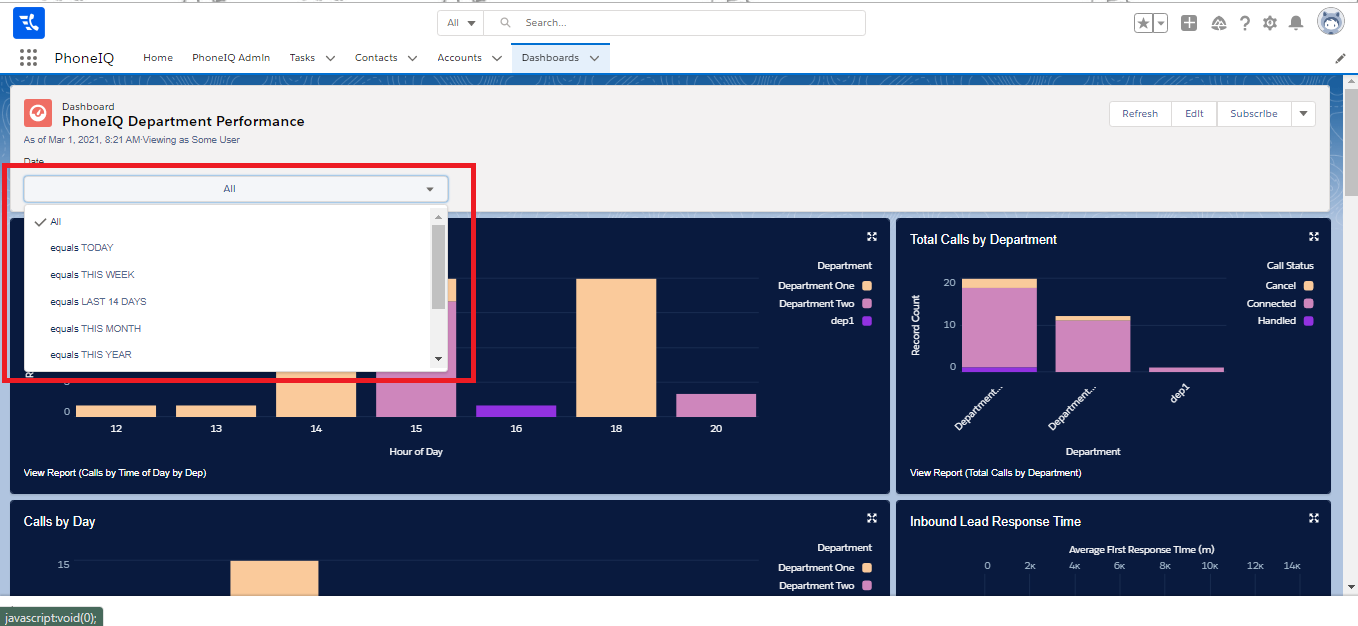
NOTE: When making changes to our default dashboards/reports, we highly recommend to 'Save As' first.
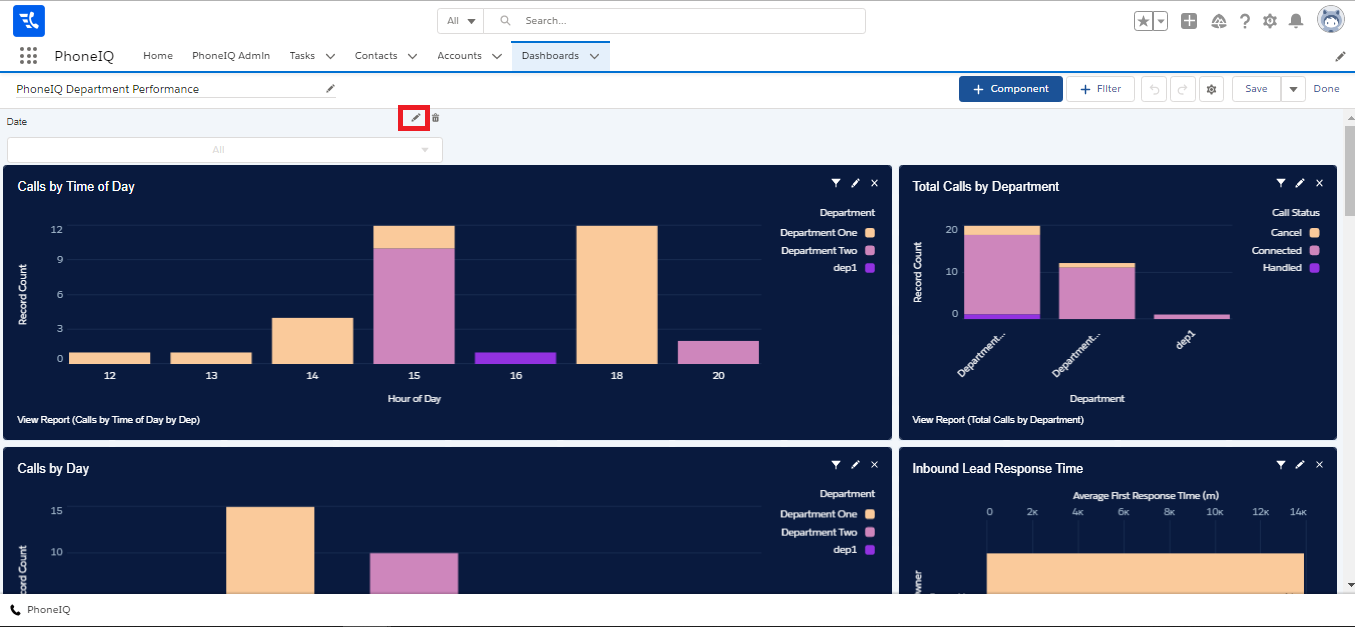
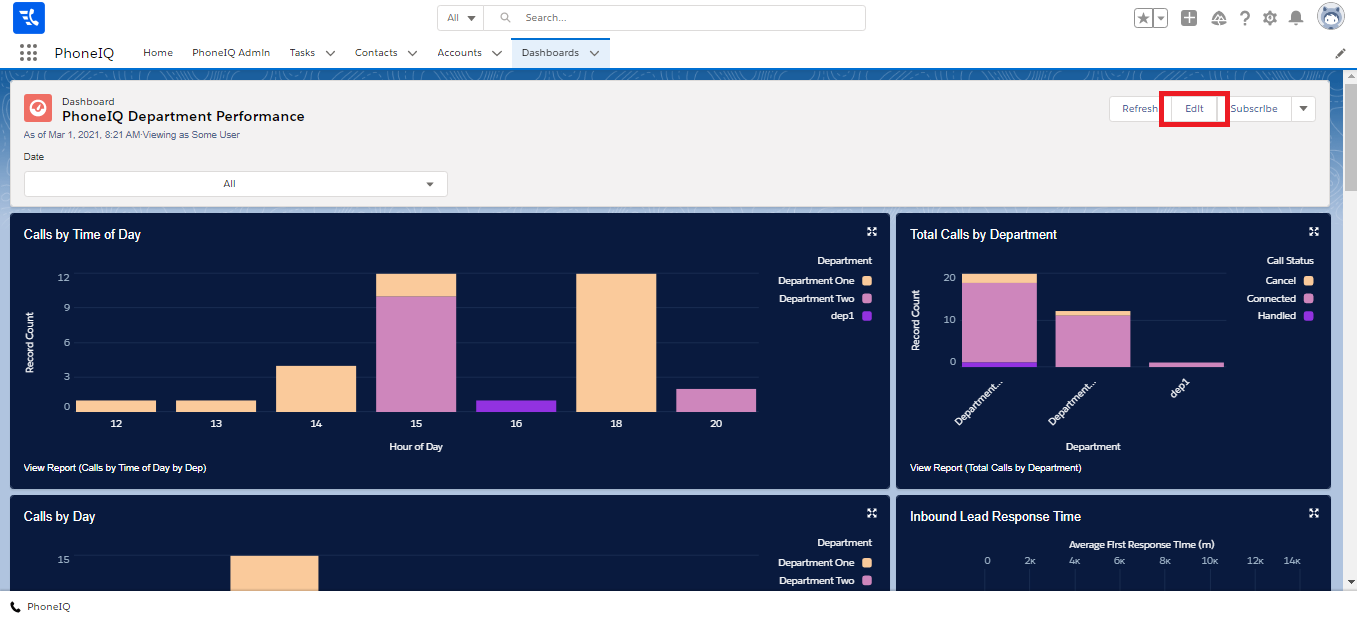
To change the dates or add a new filter, you have to go to 'Edit,'
and once there, go to 'Filters,' to add a new filter,
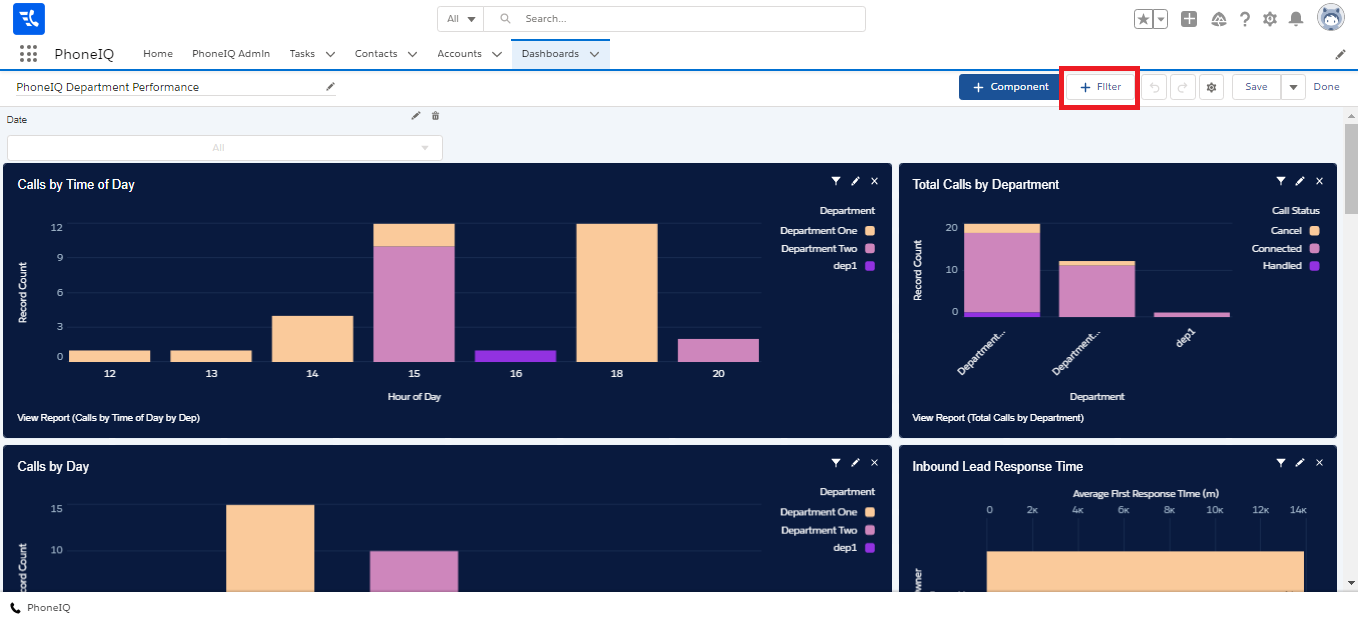
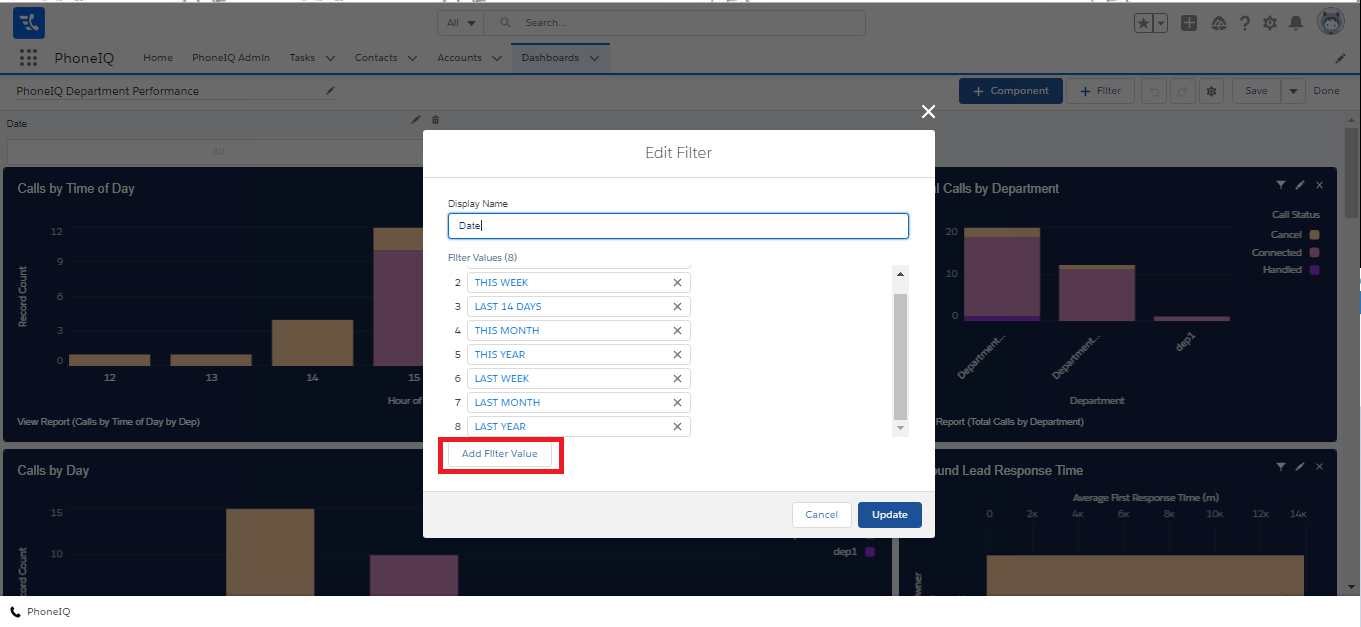
or to the pencil icon at 'Date' to change or add to the default date values.